Hi All, today I am going to attempt to set up HPE Cloud Volumes as a repo for Zerto to store its Long Term Retention data. this is something completely new to me so hopefully we can all learn something on the way.
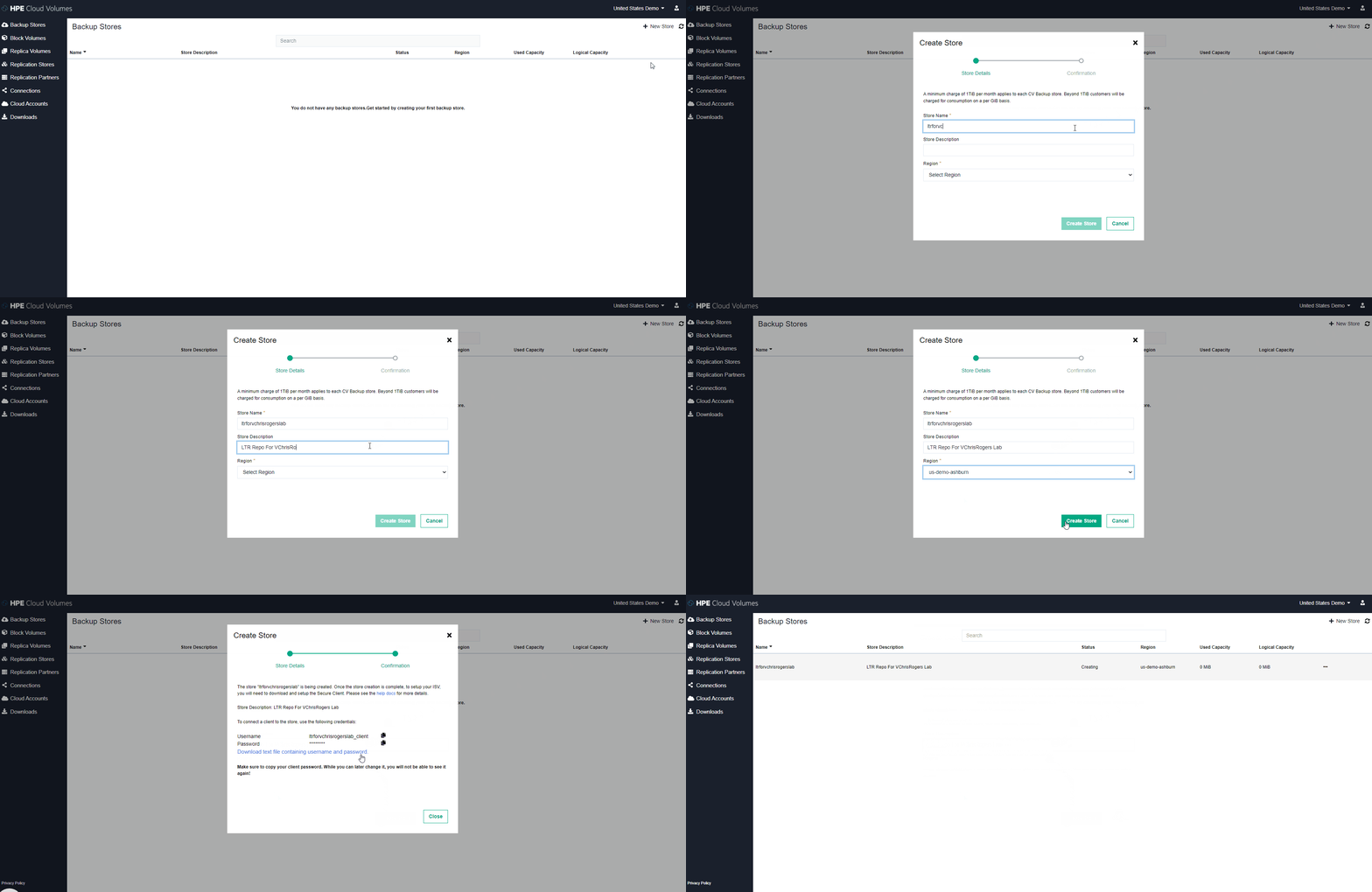
so let’s look at the steps needed to create the backup store and connect it to Zerto.
Create backup store inside HPE Cloud Volumes
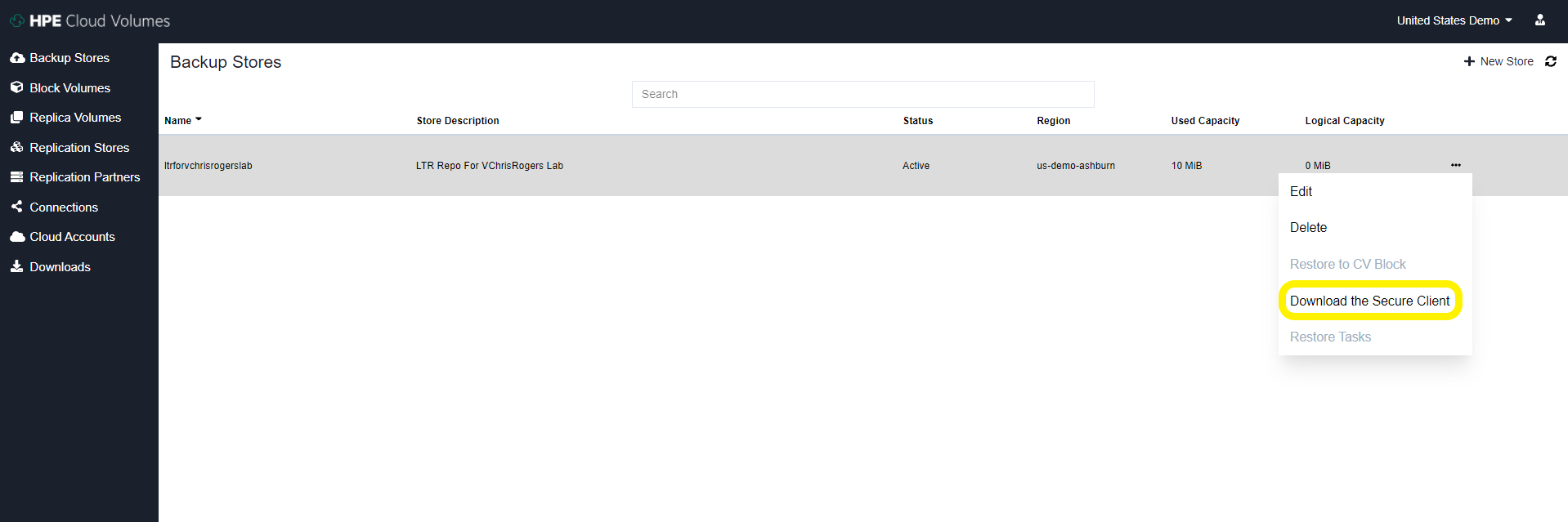
2. download the secure client from the options tab on the store we just created
I deployed an Ubuntu 20 VM and with my rather limited Linux skills I did manage to configure the secure client service correctly and get it running.
I did have a couple of issues along the way, most likely the issue stemmed from me not reading things properly (I think we have all been there) issues I had are: In the secure_client_config.yaml file I had to change the paths to absolute paths for the files and i have to change the ownership of the files to the user i was running thes service as, again probably just my poor linux knowledge shining through
# Certificate path for CDS signing authority
ca: /opt/cloudvolumes/ca.crt

# Client certificate issued by CDS to customer
cert: /opt/cloudvolumes/client.crt

# Client key issued by CDS to customer
key: /opt/cloudvolumes/client.key

# CBS public endpoint address
target1: demo-us-ashburn-1.cloudvolumes.hpe.com:9387
target2: demo-us-ashburn-1.cloudvolumes.hpe.com:9388

# Local ports to listen upon
source1: 0.0.0.0:9387
source2: 0.0.0.0:9388
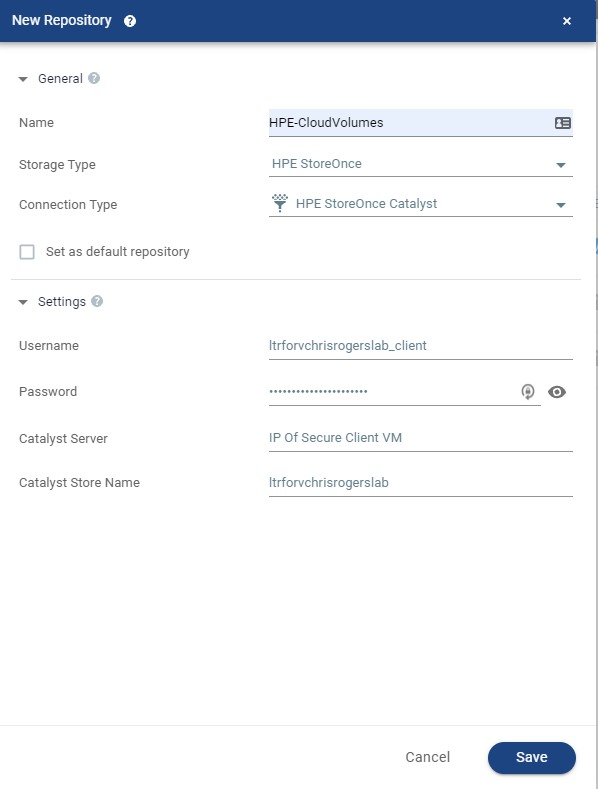
4. Once this service has started and all look good inside the VM you can now add the Repo to Zerto in the exact same way that you would add a HPE Catalyst Store from a StoreOnce Appliance – The credentials used are the ones you downloaded from the HPE Cloud Volumes page earlier on.
5. Once this is added you will see it appear as a Catalyst store inside the Zerto UI and now this is enabled for Zerto to store LTR copies on
Now all we have to do is configure a VPG to utilise LTR and send some snapshot free backups to the cloud!
I know this wasn’t particularly in depth but honestly it’s super easy to configure as are most things within Zerto.
This is a great use case for getting your data offsite but not having to pay egress charges etc – another way Zerto and HPE work amazingly well together.
I just wanted to run people by what I am using for my Long Term Retention Repo in my home lab.
I am using the HPE StoreOnce Virtual Appliance to store my long term retention copies from Zerto on – simply this is a an OVF appliance that i’ve deployed into my environment and have attached some local disks to for capacity – ive got around 1TB of usable space to consume.
the reason why I chose this appliance instead of a Generic NFS/SMB or S3 compatible is that Zerto has tight integration with HPE Catalyst API, this actually runs inside of each and every VRA Zerto deploys. So what does this mean, well…
We can add Catalyst Stores natively from the Zerto UI
Zerto will change the data structure of its LTR Copies to make sure its is perfectly suited to HPE Catalyst Store
Source Side Deduplication via the Catalyst API
Automatically optimize multiple streams without overloading StoreOnce
Automatically manage the repository lifecycle and perform garbage collection
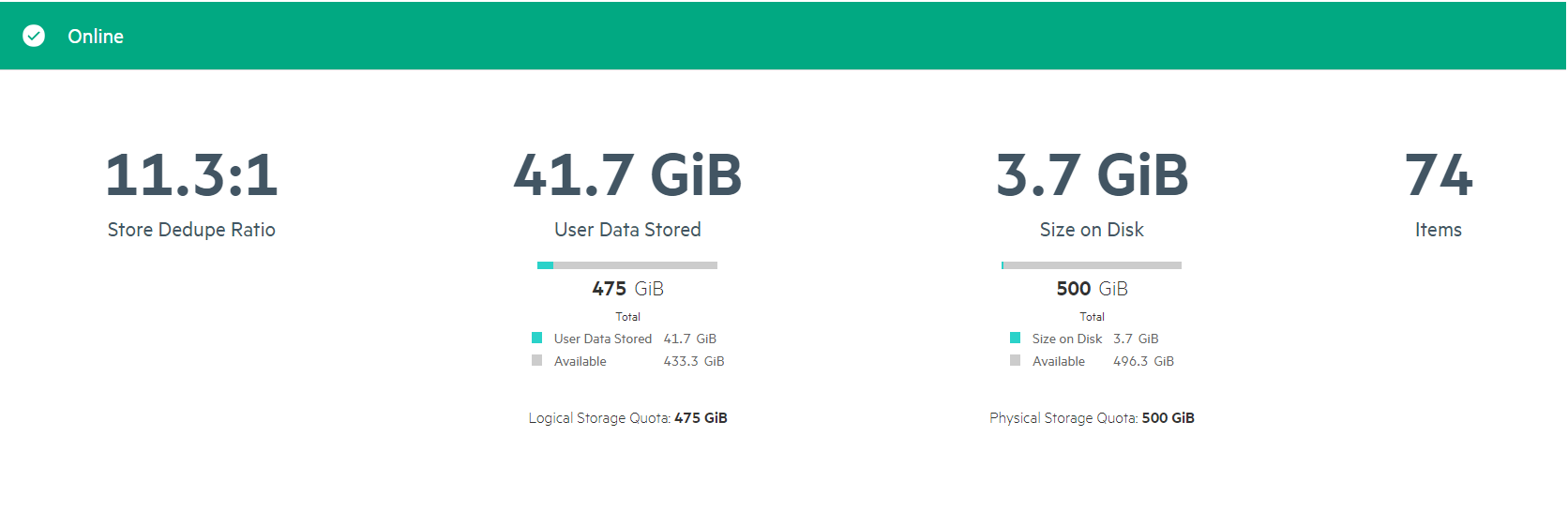
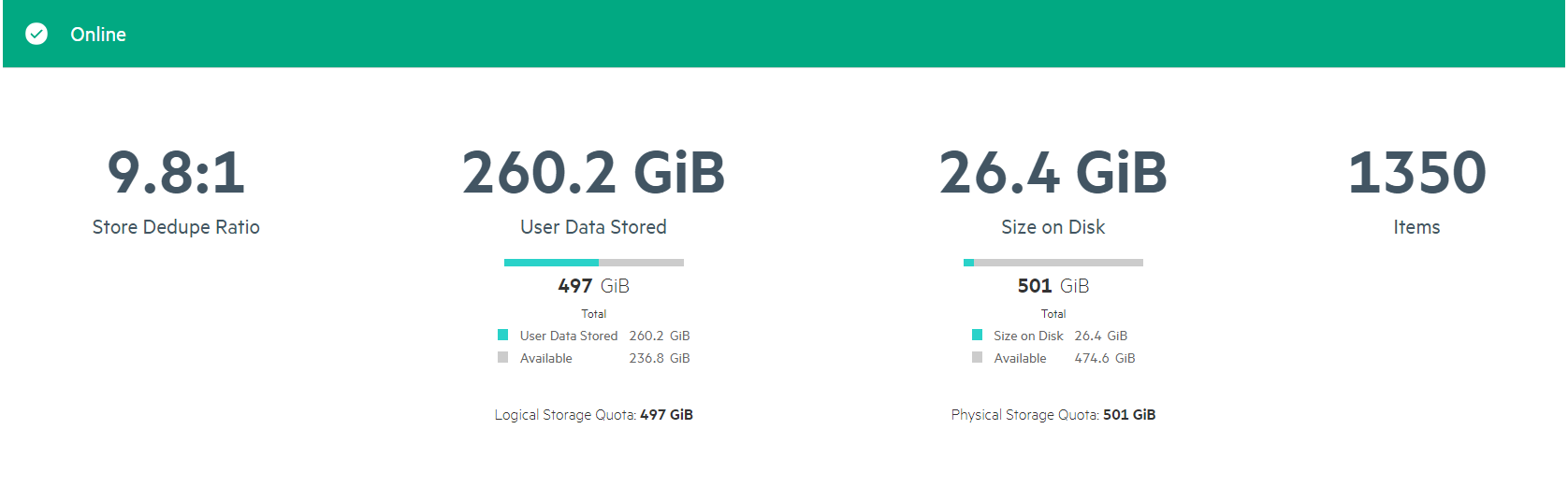
I also think the COmpression ratios i am getting are pretty awesome too! So not am I only saving bandwidth across the network by deduping the data before it’s sent but when it lands im getting decent compression ratios aswell to make sure my LTR copies take up as little space as possible.
I have also created a CIFS share for LTR indexing so all my data is on a single appliance and super easy to use as well to.
So i’ve started my journey into the world of containers and have found loads of resources available to help me understand the concepts.
Obviously I have been taking a look at Zerto for Kubernetes (Z4K), i’ve been reading documentation and watching videos and presentations and gained loads of knowledge from these resources. The one thing that has helped me the most is taking the Hands On Lab for Z4K – And not just once i’ve been doing this repeatedly to get a grasp on CDP for containers but also other kubernetes tasks/tools things like speeding up on creating YAML files from scratch and using Kustomize.
I’d highly recommend anyone who is looking at Zerto for Kubernetes or wants to get a feel about how data protection can work inside of Kubernetes Environments to deploy a lab – Better yet is completely free to do so!
There is also loads of other labs you can try out for yourself, another personal favourite of mine is the Recovery from Ransomware Lab, which actually infects the lab with ransomware so you can recover the environment using Zerto.
I hope you have all read my ZLS deployment guide blog and found it useful in deploying your own ZLS into your environments. I thought I would do a follow up on a few things I have noticed now I have it imbedded in my setup.
ZLS seems to be relatively set and forget – unless you need to divide up licence keys you can pretty much forget it exists.
Ensure connectivity remains between ZLS and each ZVM Connected to it! If the ZLS does become disconnected from the ZVM’s then you will not be able to add new VPG’s to your environment
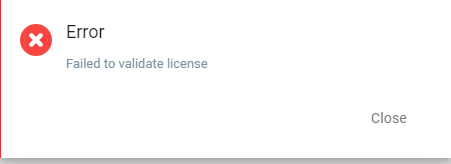
Once the ZLS becomes disconnected you will see the below error on your ZVM
Once you then try and run through the VPG Setup as you try and finalise the settings you will see this error:
Until you resolve the issue with the ZLS and ZVM communication you will be unable to create new VPG’s
All recovery functionality remains available so no impact to ongoing protection or the ability to recover any data either from the journal or LTR repositories.
I was playing around with the new Zerto Licence Server recently and have deployed it into my lab at home,
I then thought, maybe other folks would find it useful to have a walkthrough guide as this is a new component to the Zerto stack… So here it is:
ZLS Overview
Firstly what is the ZLS – well as you can guess its to do with licencing… yes i know the worst subject ever, but important nonetheless. The newly introduced License Server delivers enterprise license automation, self service and reporting to streamline Zerto software licensing.
ZLS Deployment
Download Appliance
As with all Zerto products and packages these are downloaded from the MyZerto portal. once logged in navigate to the “Support and Downloads Page” and download the ZLS package. the great thing about the ZLS is that it gets deployed via an OVF Appliance rather than just install packages, this makes deploying it super simple inside of a VMware Environment.
Deploy OVF Appliance
As i’m sure most of you are familiar with deploying an OVF Appliance i won’t spend too much time on this as its a pretty standard deployment
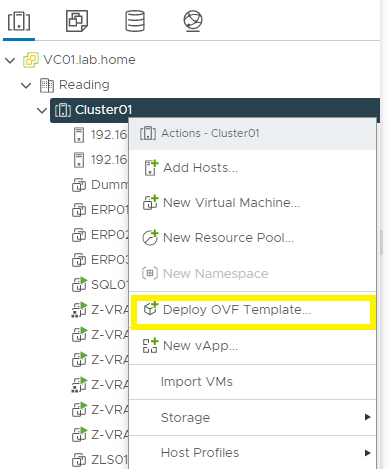
1- Navigate to vCenter to deploy OVF Appliance
2- Continue Through the Wizard to select the relevant files for upload
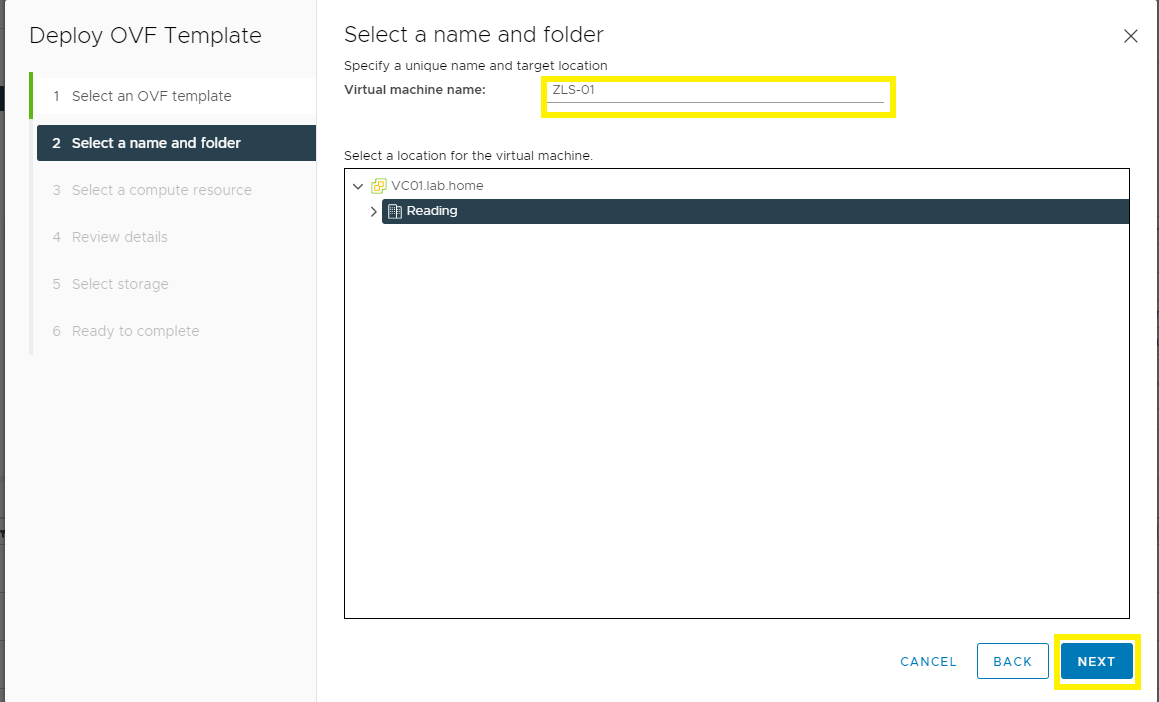
3- Name the VM and Select the location of the VM
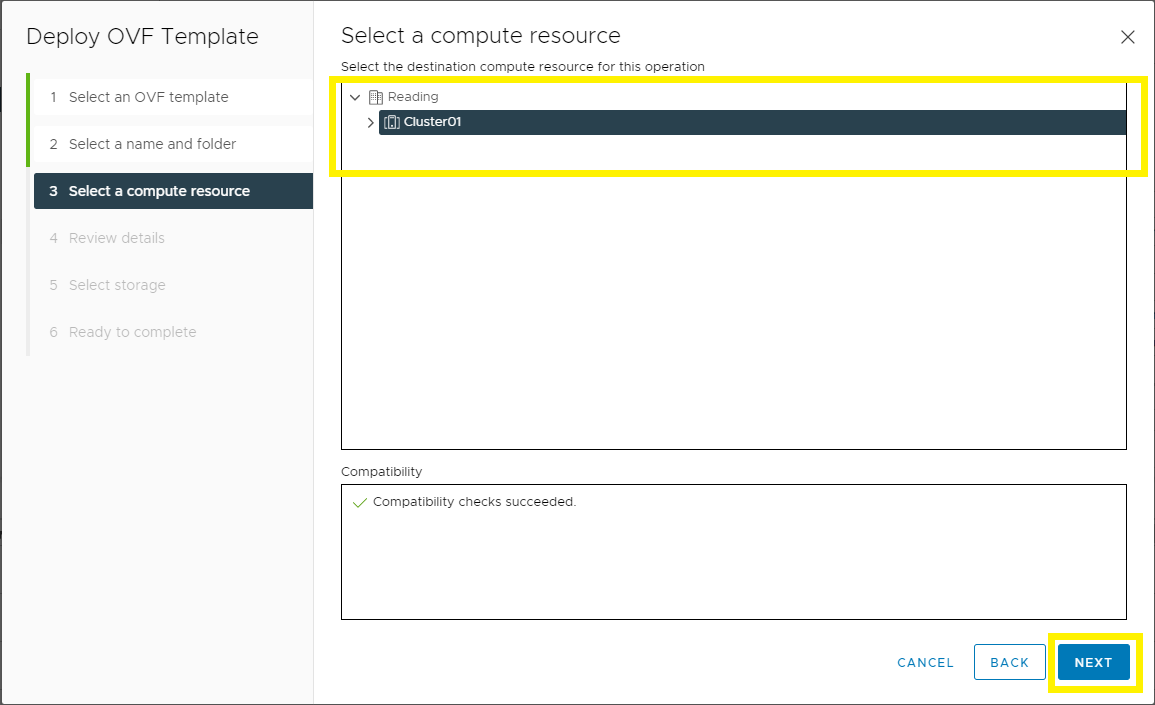
4- Select Compute Resources needed to run the VM
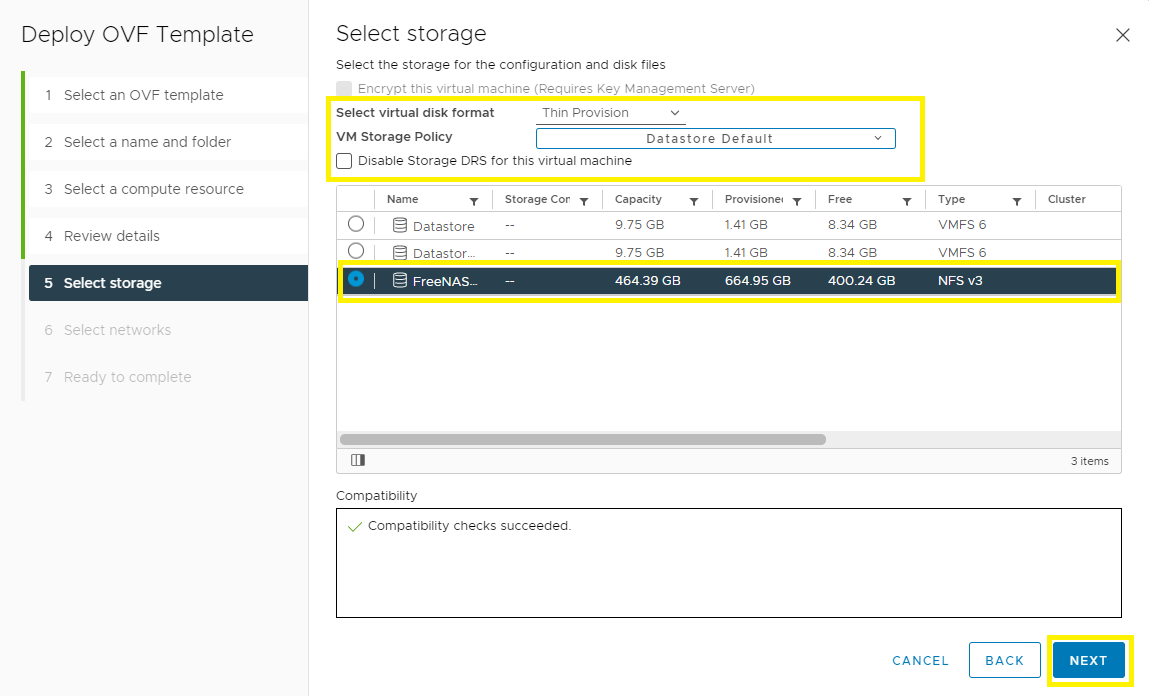
5- select the Storage where the VM will be located
6- Select the Network for the VM to be attached to
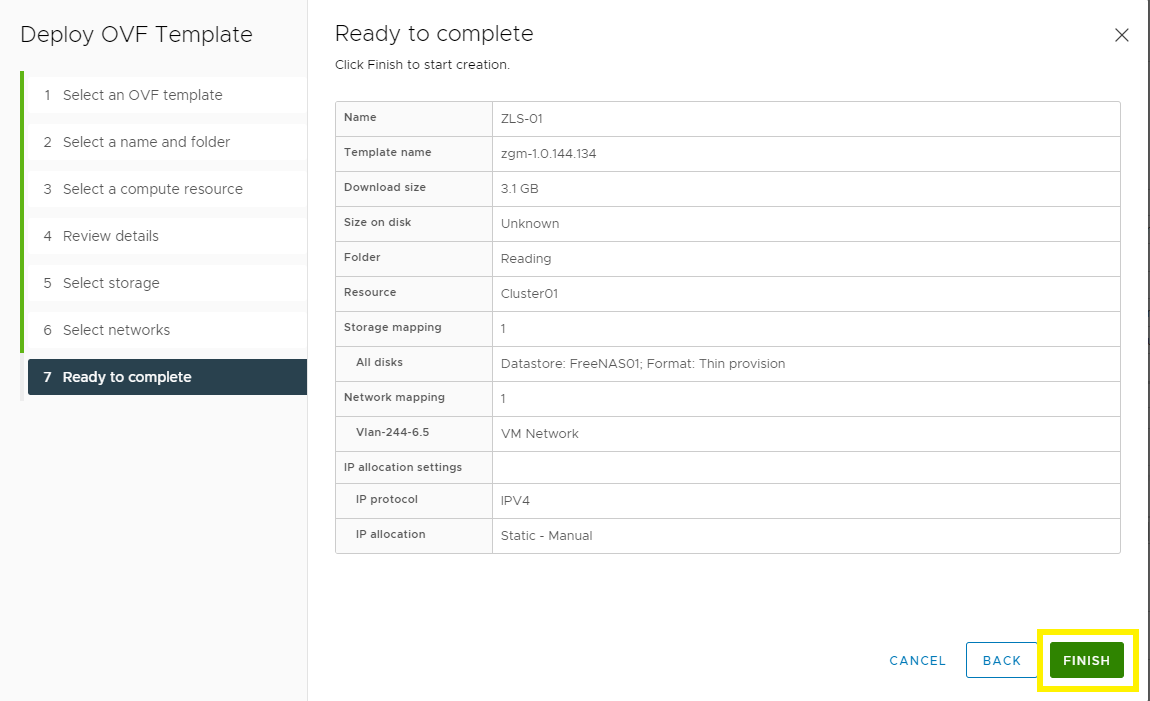
7- Finish and Deploy
ZLS Initial Configuration
Now the ZLS appliance has been deployed, we can start the configuration F
Firstly open the ZLS backend UI which is based upon KeyCloak – this is access via :
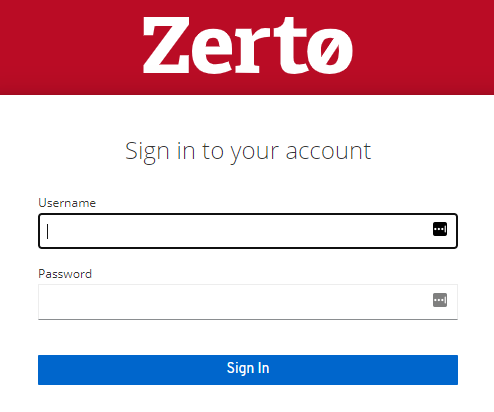
This will open the KeyCloak login page, first login credentials are:
Username: admin
PW: admin
NOTE: you will be prompted to change the password upon first login.
Consider disabling the admin user and setting up your own accounts for security purposes – in my demo i have set up zls-user as a profile.
Keycloak has a wealth of other user management methods including AD integration etc, I will be looking into these at a later date.
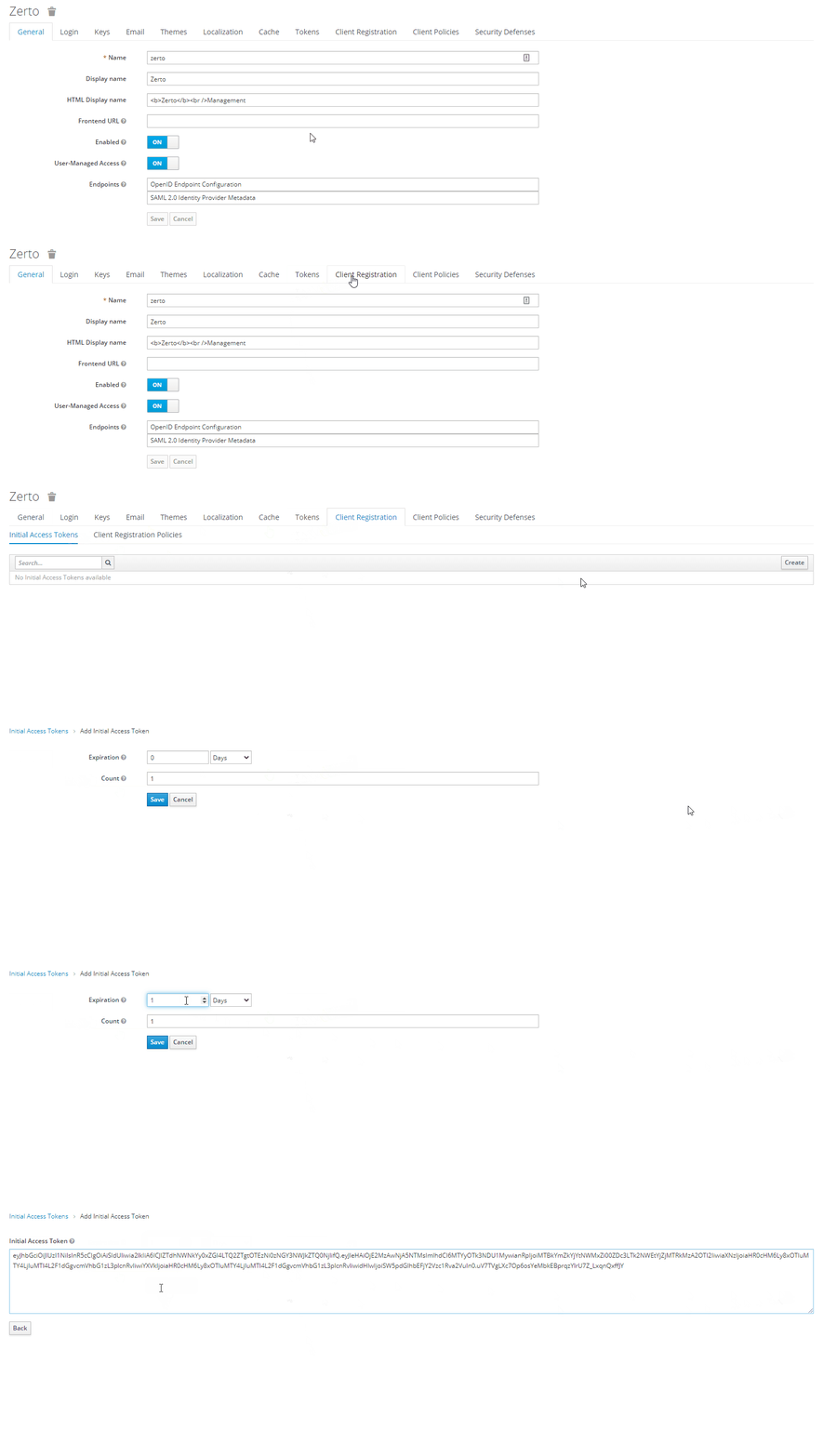
Once this has been done you will need to generate an Initial Access Token – this is used to pair a ZVM to a ZLS – I have configured the token to last 1 day as i intend to use it straight away
Keep a note of the Token as we will need it later on and you cant get it back once you close the window
You will need to create a new token for each ZVM connection to the ZLS
ZLS Connection to Zerto Back Office
Now we have our initial setup sorted we will now need to login to the ZLS itself – to do this we just need to access:
This will open up the ZLS portal where you can login using the account you have created.
Now logged in you will need to gather the Server ID, this is achieved by selecting the Server ID Button.
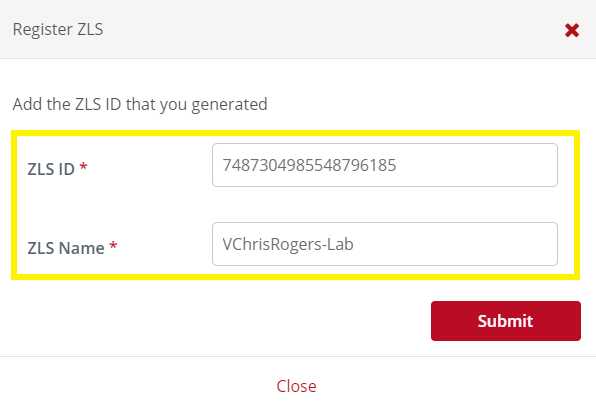
Once we have this we need to go back to MyZerto and in the support and downloads section we will find a ZLS section. open this section and the first part we need is to “Register ZLS” this is where we will need the Server ID and we will be required to name the ZLS
Connect ZVM to ZLS
Now we have connected the ZLS to the Zerto Back Office we will now run through connecting a ZVM to a ZLS
Please note if you have already deployed a ZVM this process CANNOT be reversed!
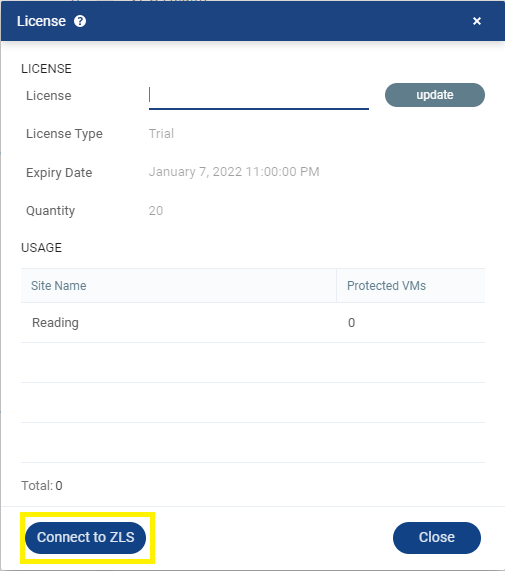
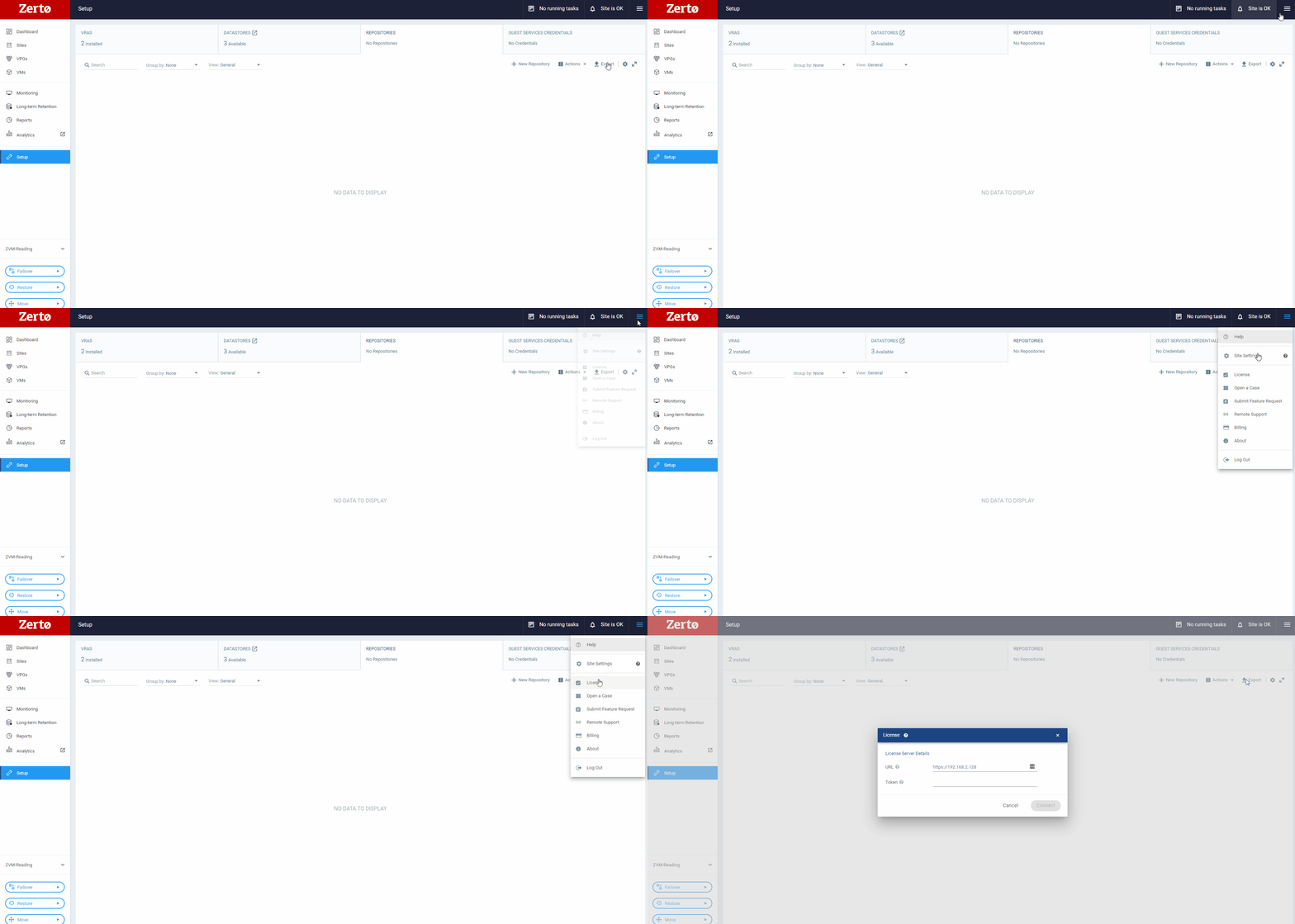
Log into your ZVM and navigate to the menu in the top right, select the “Licence” Option and select connect to ZLS
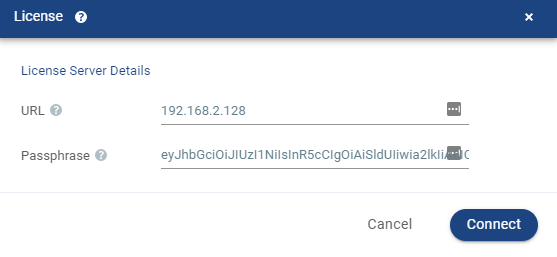
Now you will need to enter the URL for the ZLS and the token we created earlier
Create Licence Key
So now we are back to the MyZerto Portal in the ZLS Section, we click the big button titled “+Licence”
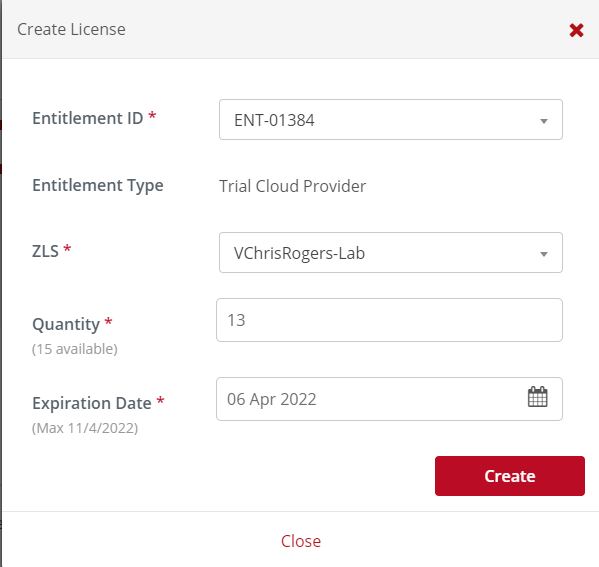
This will now bring up a new window asking you for some criteria =:
1- Entitlement ID – will be a drop down from your existing entitlements
2- ZLS – which ZLS you want to register this Licence key to
3- Quantity – Number of VM’s you want this Licence to be for.
4- Expiration date – expiry of licence upto the maximum date of your entitlement
This will now allow you to copy the licence key to your ZLS
your connected ZVM’s will now consume its licence through the ZLS, and will no longer be able to input a standalone licence key into a the ZVM
Well that’s all for this post! i hope you found it useful, feel free to comment and share!
Hi All, in this series i am going to be looking at a deepdive into the Zerto Cloud Manager(ZCM), the ZCM is a component normally deployed by our service providers but can equally be used by End User customers aswell.
Some of the features the ZCM brings are:
Multi-Tenancy Support
Resource allocation
Organisations or “ZORG” Definition
ZSSP user configuration
Granular RBAC
ZCC deployment
Service Profile Definition
Centralized alerting – can also be viewed via Zerto Analytics
As you can see there is a wealth of additional features and functionality that can be added to the Zerto platform with the addition of the ZCM
Deployment
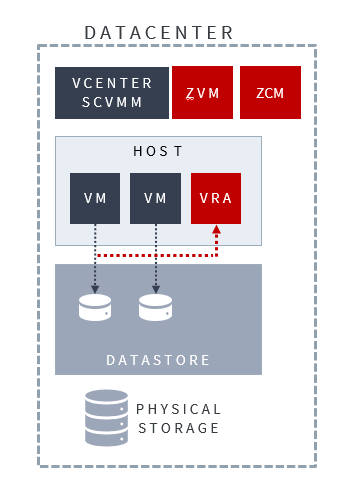
As we can see the ZCM is another VM deployed inside the Datacenter – the install packages can be downloaded via MyZerto.
For all tech specs and ports etc please follow the Zerto official documentation :
In this section I will be walking you through the various areas of the ZCM to give you an understanding of what each section does
but first lest get some Jargon out of the way
ZORG – Zerto organisation – Used to define what a single tenant is inside of the Zerto Infrastructure
ZSSP – Zerto Self Service Portal – Allows tenants to access Zerto Infrastructure that is not hosted by themselves
ZCC – Zerto Cloud Connector – A Small Appliance that allows a dedicated connection point for each Tenant, this masks the infrastructure behind the ZCC so no information is displayed to the tenant.
Login
Logging in is simple – its a Web based UI – that is accessed using the following URL:
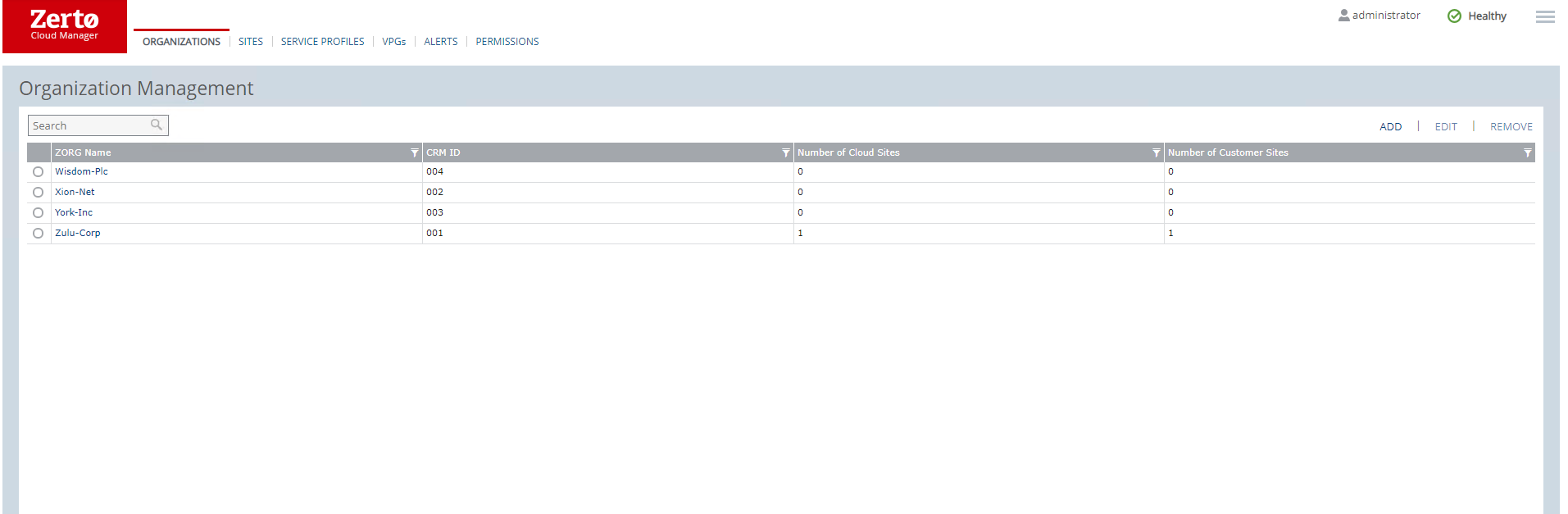
In this section we show all the ZORG’s that are currently configured inside the ZCM, as the ZCM is a global entity across the entire Zerto estate a ZORG only needs to be created once and can now be used across the entire Zerto estate wherever it is required.
We can also drill into the each organization in more detail – we will cover this further down.
Sites Tab
The sites listed under this screen are the Sites directly connected to this ZCM – this does not include DRaaS Customer connected via a ZCC.
You will see all the various info about the site including whether it is configured for VCD or not.
Adding a new site is very easy
Simply click on add, input the required details – ZVM IP the port you have installed the ZVM on – normally left as default, and the ZCM access code which can be found under the site settings in your ZVM.
Service Profiles
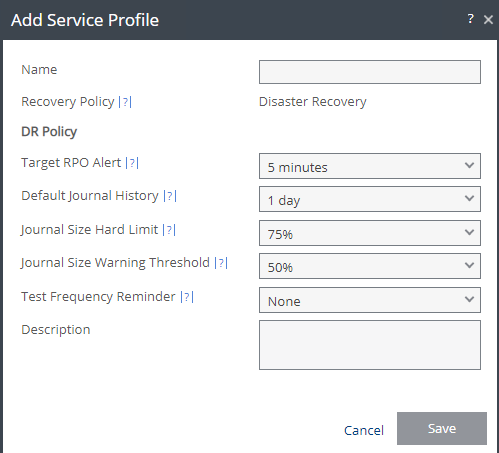
Service Profiles come in extremely handy for either Service providers of Large enterprises that want a cookie cutter approach to protecting their VM’s. Service profiles allow the administrator to pre-define certain fields inside of a VPG.
The fields that are pre-populated in a service profile are:
Target RPO Alert – The threshold for when Zerto should alert the user that an RPO has exceeded expected RPO
Default Journal History – The time of length that the short term journal is configured for.
Journal Size Hard Limit – Maximumsize the short term journal can grow to in % of VM size
Journal Size Warning Threshold – the % Size of the journal that will trigger an alert
Test Frequency Reminder – how often should this VPG be tested for DR
These service profiles are then assigned during the VPG Creation ensuring that each VPG has the same settings per service profile.
Permissions
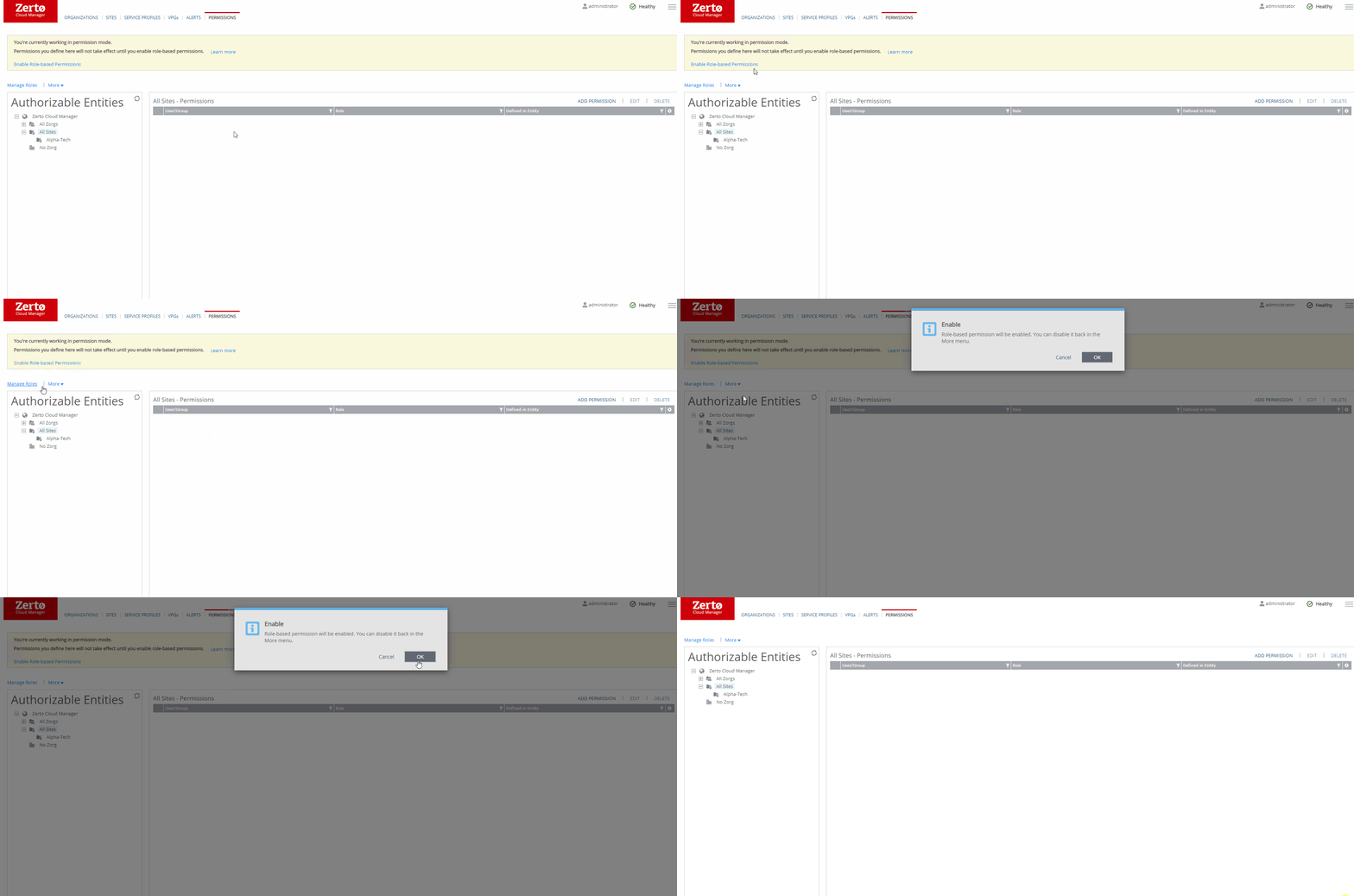
The Permissions tab is where administrators will configure RBAC.
To enable RBAC select the “Enable Role-Based Permissions” option
I will be doing a follow up blog to cover RBAC in more detail so watch this space.
Deep Dive into ZORGS
as we discussed earlier a Zorg is an organisation inside of Zerto, so let’s explore one in more detail :
Zorg Page
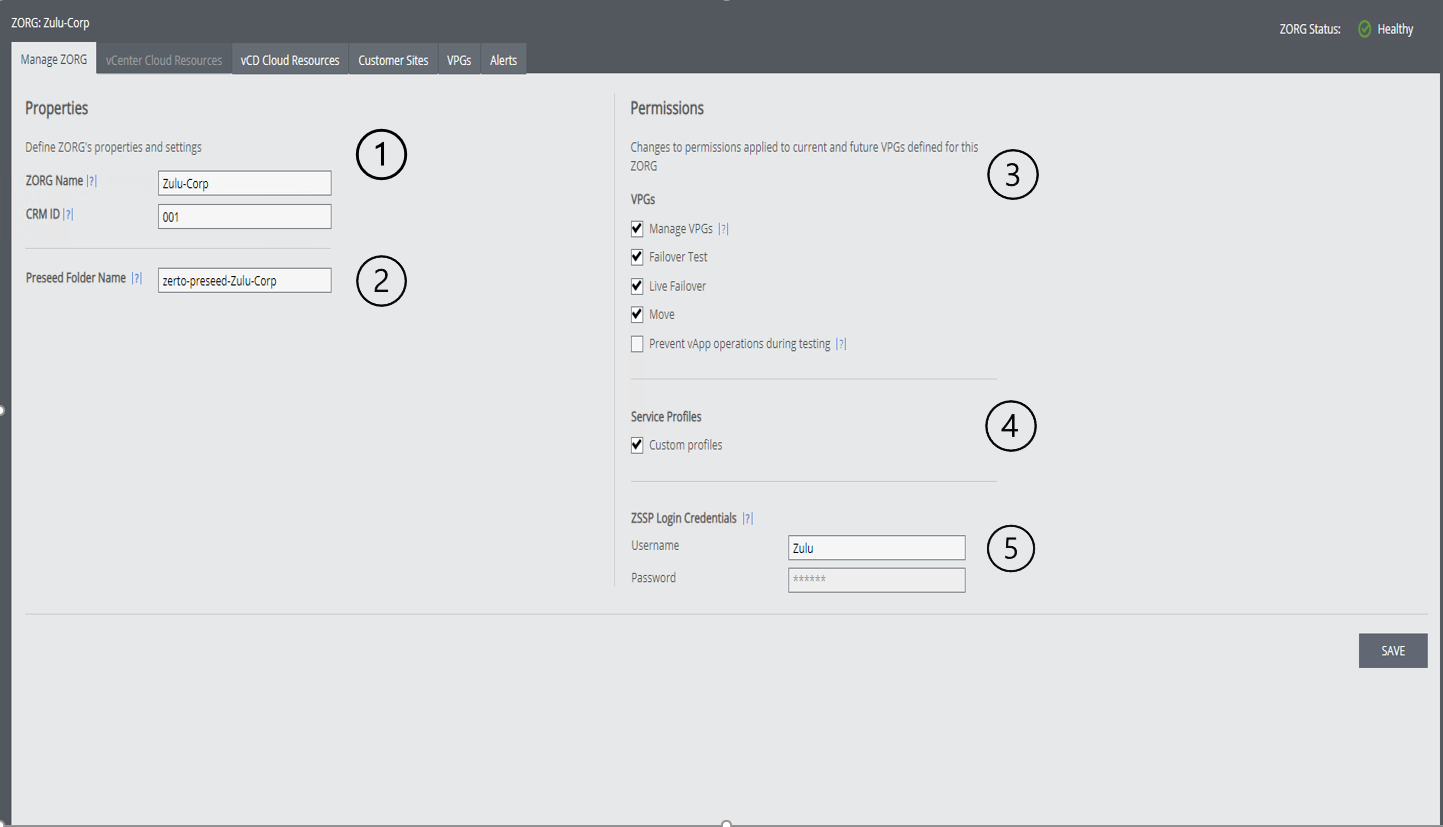
Lets run through each section in a little more detail:
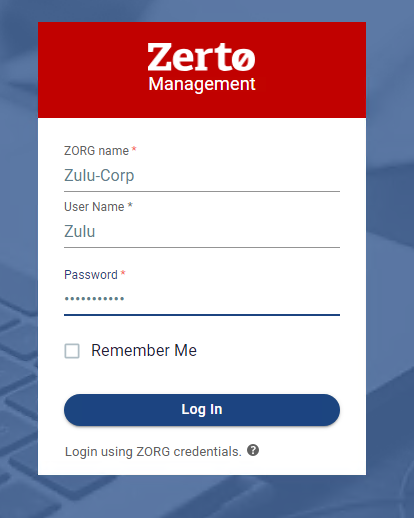
1– This is the Zorg information – this will be used for Zorg identification both internally and externally, this is also used as a field for the ZSSP login
2– Pre-seed folder name is used to store ZORG pre-seed disks, this means that only Disks inside of a folder that matches this name can be seen by a ZORG to use for pre-seed – make sure this matches a folder name inside your environment if you change it.
3-These permissions dictate what a customer can/cant do inside of the ZSSP – they are relatively self explanatory, expect for the last one – “Prevent vAPP operations during test” , when this is turned on a user will not be able to change settings inside of the created VCD vApp when Zerto is performing a failover test. This prevents issues where users could delete the vApp without zerto being aware making the VPG go into an error state, in my opinion this should always be turned on.]
4– Custom Service profiles allows a ZORG to create their own service profiles on a per VPG basis, this enabled a ZORG user to change the settings we ran through earlier in the post.
5– ZSSP login credentials – Again self explanatory – these are the credentials used for a ZORG to login to the ZSSP, I would recommended rotating credential’s on a regular basis for security purposes.
Resource Allocation
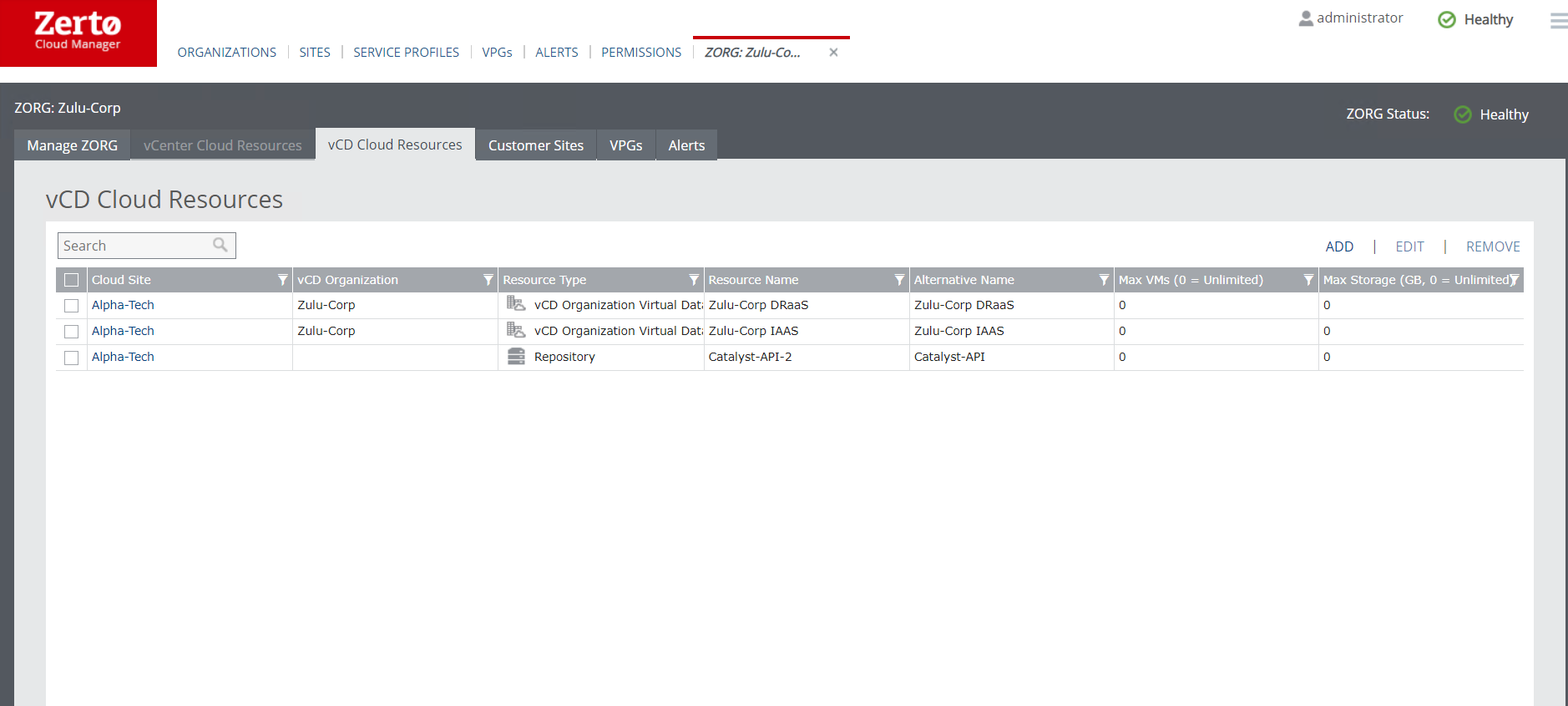
One of the most important sections in the ZCM is the ability to assign resources to a ZORG ensuring that no Zorg can use resources they have not been assigned. a ZVM can either be configured to use vCenter OR VCD this shows in the sites tab I showed earlier.
vCenter Resources that can be assigned are the normal objects found in vCenter these comprise of:
Resource Pools – These are mandatory when deploying Zerto in multi-tenant vCenter environment – can only exist in a single ZORG
Virtual Networks – Can only Exist in a single ZORG
Datastores – Can exist in multiple ZORG’s
Repositories – can only Exist in a single ZORG
When we are using VCD we add the whole VCD organisation under the ZORG – This will then automatically include all ORG VDC’s and the objects contained within them, eg ORGVDC Networks and Storage policies. each organisation can only exist in a single ZORG at a time, and the ZORG will populate new resources as they are added into the VCD organisation.
Customer Sites
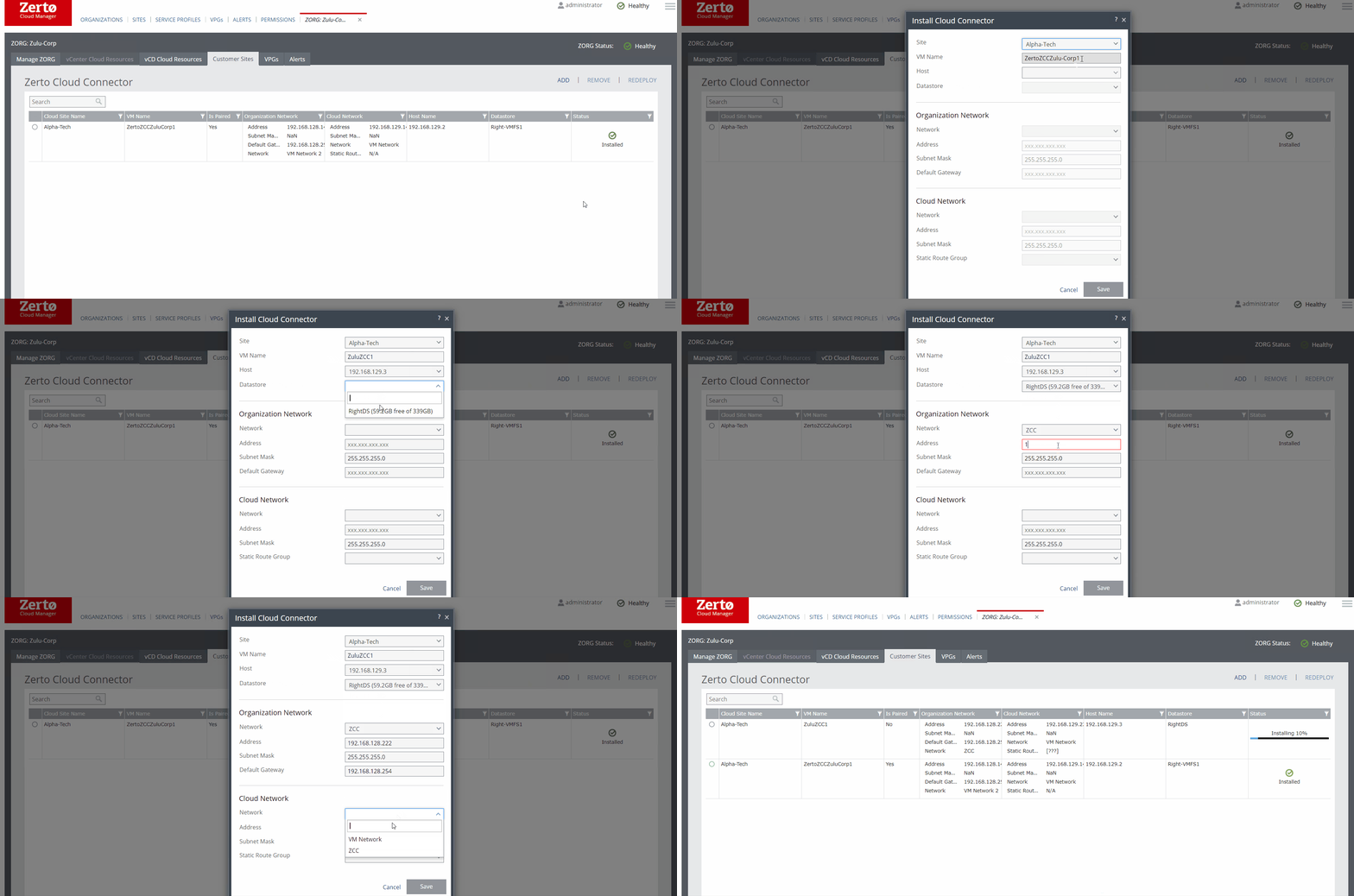
This section is where we would Deploy ZCC’s for the specified ZORG
There is a simple wizard to help deploy the appliances that connect a customers on-premise site to a service provider site.
Once this is deployed the Zorg customer can now pair through the ZCC into the ZVM backing it, this hides all internal infrastructure outwards.
Conclusion
the ZCM is a very powerful component and probably a component that some of you may not have used before and can be used in service provider and Large enterprise customer settings.
As I said before keep an eye out for more details on the RBAC post to follow
With my service provider background holding a large place in my heart i am always extra excited when new features in Zerto land that are aimed directly at our service providers.
one of these features in Zerto 9 is the ability to enable tenants to restore files and folders directly back into production VM’s or download compressed inside the web browser from all the journal recovery points. this means that without any intervention from your service provider a tenant can access files and folders from mere seconds go and self service restore them, and remember all this without snapshots or any production impact .
lets run through the process of how a tenant can access this :
log into to your service providers ZSSP (if they have enabled the VCD Tenant UI this can be done from inside VCD)
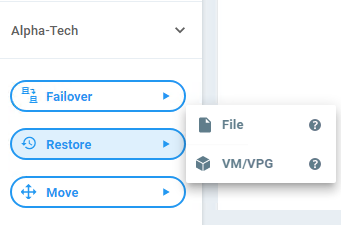
2. Navigate to the Restore Button and click restore file
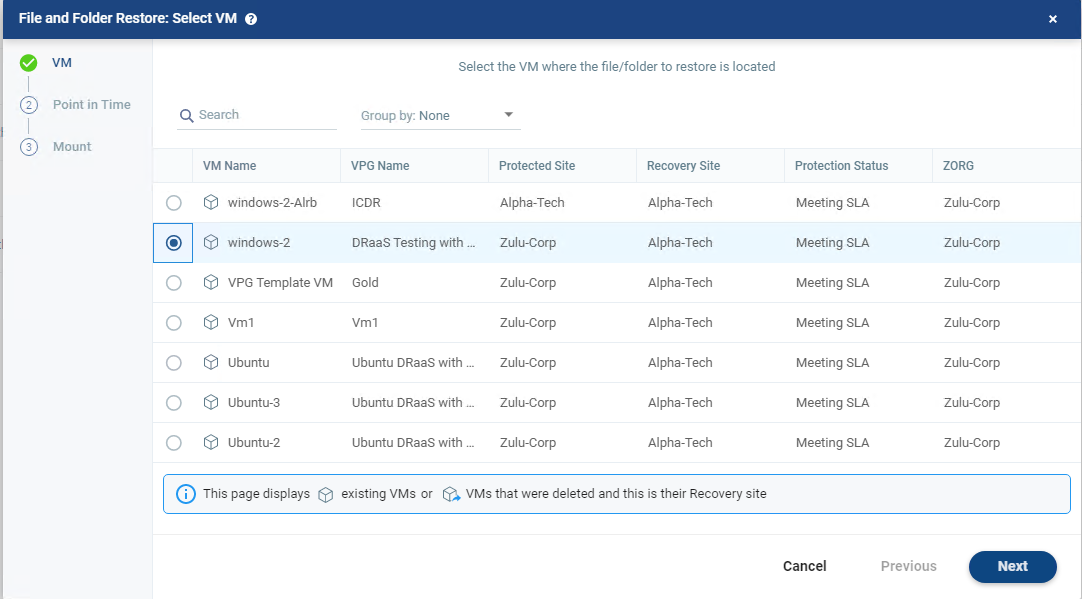
3. The wizard will open up and you can select which VM you would like to recover files and folders from
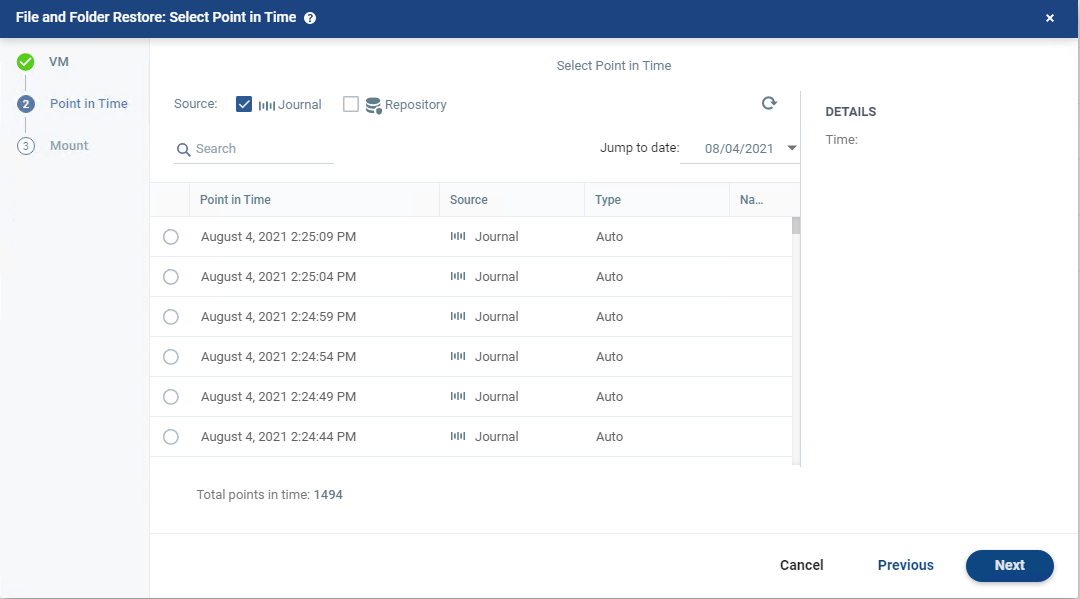
4. the next page is where the tenant can select the journal point in time that they want to “rewind” the files and folder to – Note the 1494 points in time to recover from.
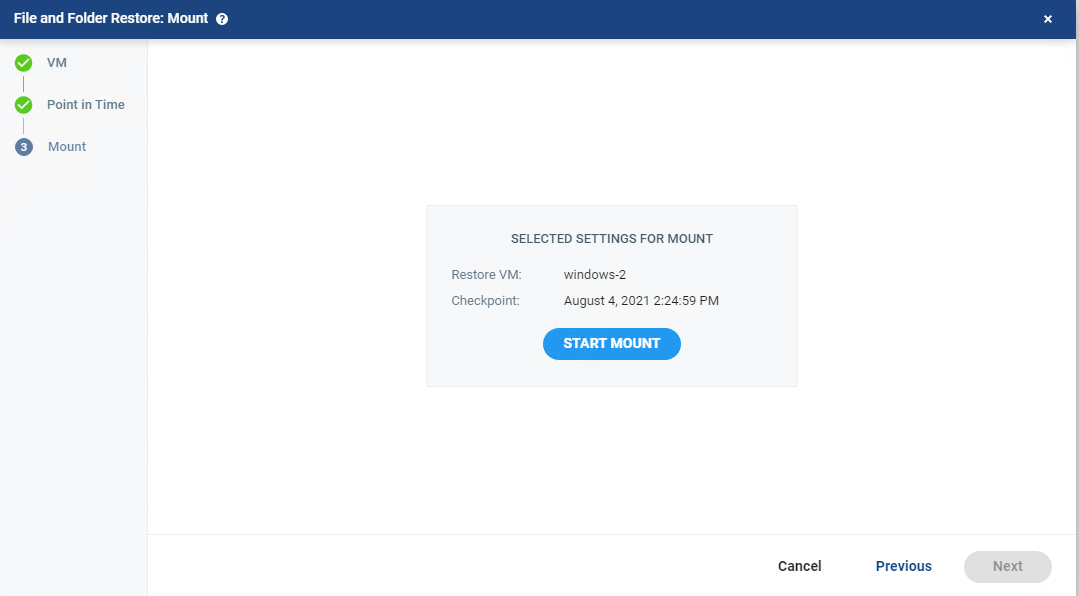
5. now select to mount the view of the files and folders – this uses no additional compute resources as we do not build any infrastructure or VM’s during this process meaning no additional costs.
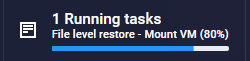
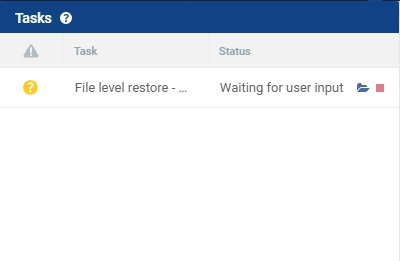
6. the mount process will now start and can take a couple of minutes to complete
7. once the mount completes you will now be able to open up the rewinded point in time to view the files and folders
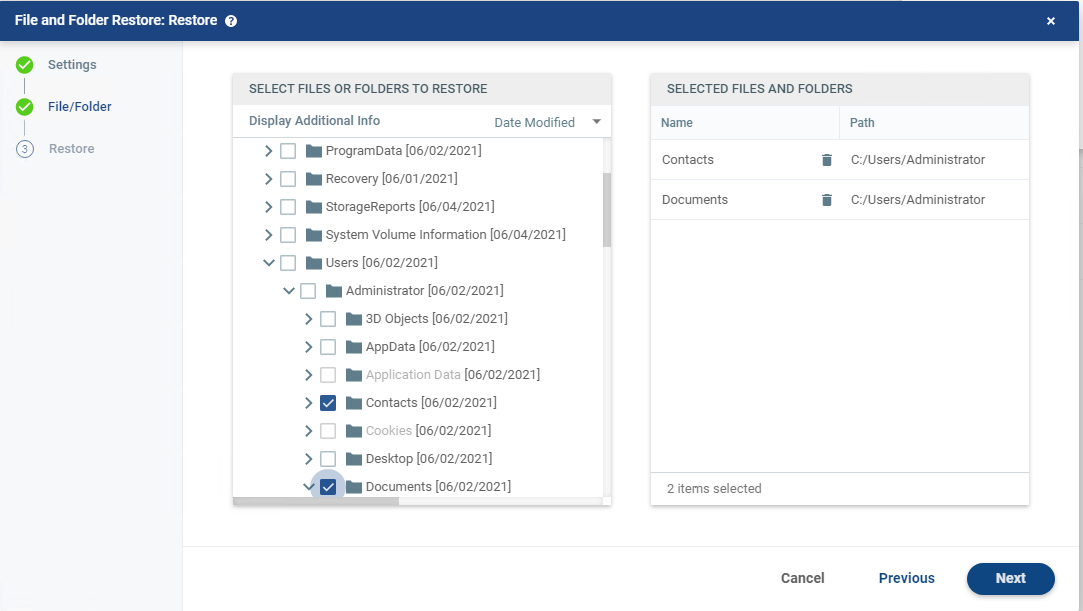
8. you will now see the VM you have chosen with the disks available to browse, here is where you select the files and folders you want to recover.
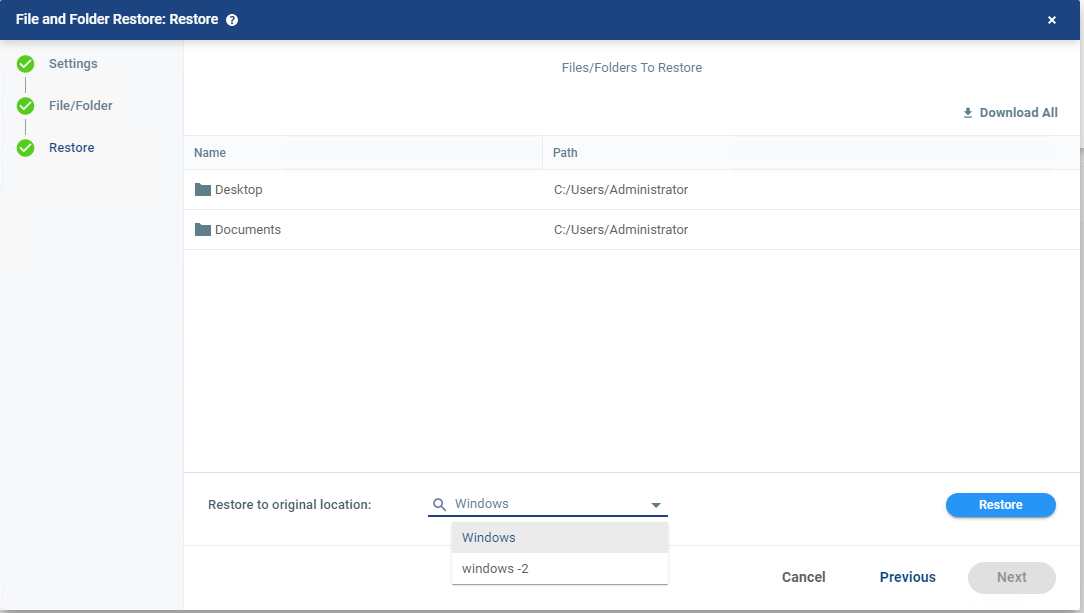
9. you now get your recovery options – you can ether restore instantly back into the production VM using guest OS credentials you have pre-configured or you can download them compressed inside of the web browser.
7. once this is done you can stop the mount – one thing to note as whilst this process is ongoing Zerto is still replicating the data therefore maintaining that ~5 second RPO
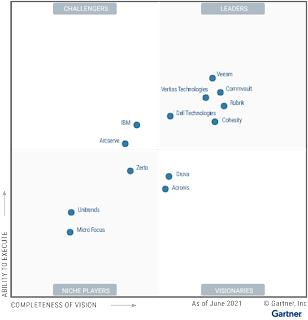
Zerto reached a huge milestone in its history by making it into the Gartner MQ for Backup and Recovery for the first time. in my opinion this is a huge step as Zerto has its roots in the Disaster Recovery Sector. I believe this is even more significant as the MQ placement was evaluated before some key announcements from Zerto, lets dig into some of these
Zerto for SaaS Powered by Keepit – Powerful SaaS Backups for Microsoft 365, Google Workspaces, Salesforce and More! all delivered in an easy to use SaaS platform that requires no infrastructure, no additional storage (even public cloud storage) and some amazing recovery workflows
Zerto for Kubernetes (Z4K) – the worlds best CDP engine dropped into the worlds best container orchestration platform, in my opinion a match made in heaven. allowing customers to achieve data protection-as-code, so Kubernetes workloads are born protected, and protected every 5 or so seconds with the same granularity that Zerto customers have come to expect from Zerto’s CDP engine for VM’s
Zerto 9 – In my opinion one of the biggest releases in Zerto’s history. Loads of new features & functionality including but no limited to:
When we take all of these things into account I truly think that Zerto has a great future disrupting the backup market and making sure CDP is the best protection against things like ransomware. More to come on the above features in future posts
Please comment, or share so others are also aware.











 VChrisRogers